Folio / Confluence
Great work deserves a great document.
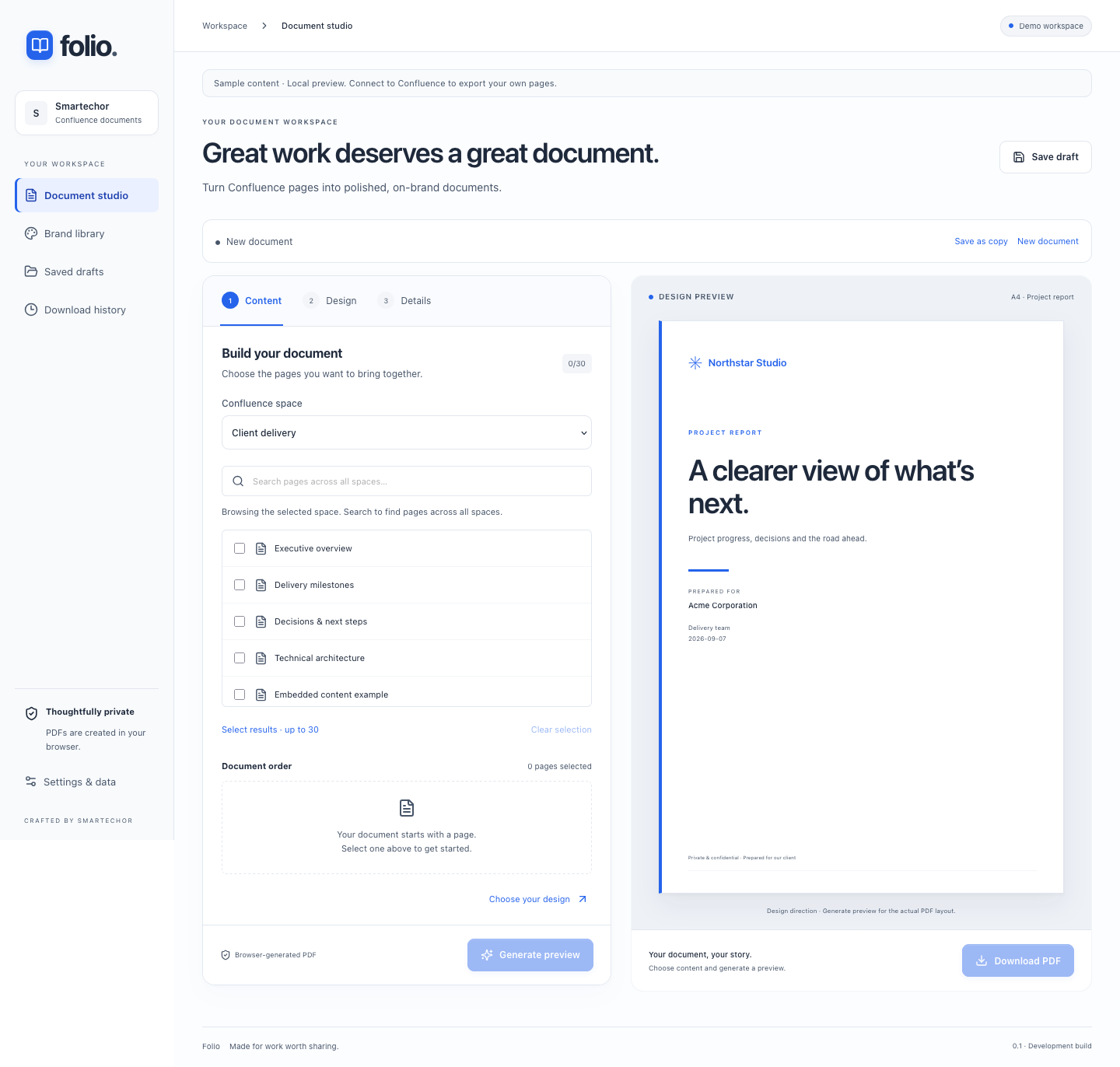
Turn published Confluence pages into polished, on-brand PDFs. Bring your content together, choose a document style and review the result in one focused workspace.
01
From working knowledge to a document worth sharing
Your team has already done the thinking in Confluence. Folio helps you bring that work into a document you can share with clients, colleagues and stakeholders.
02
Bring the right pages together
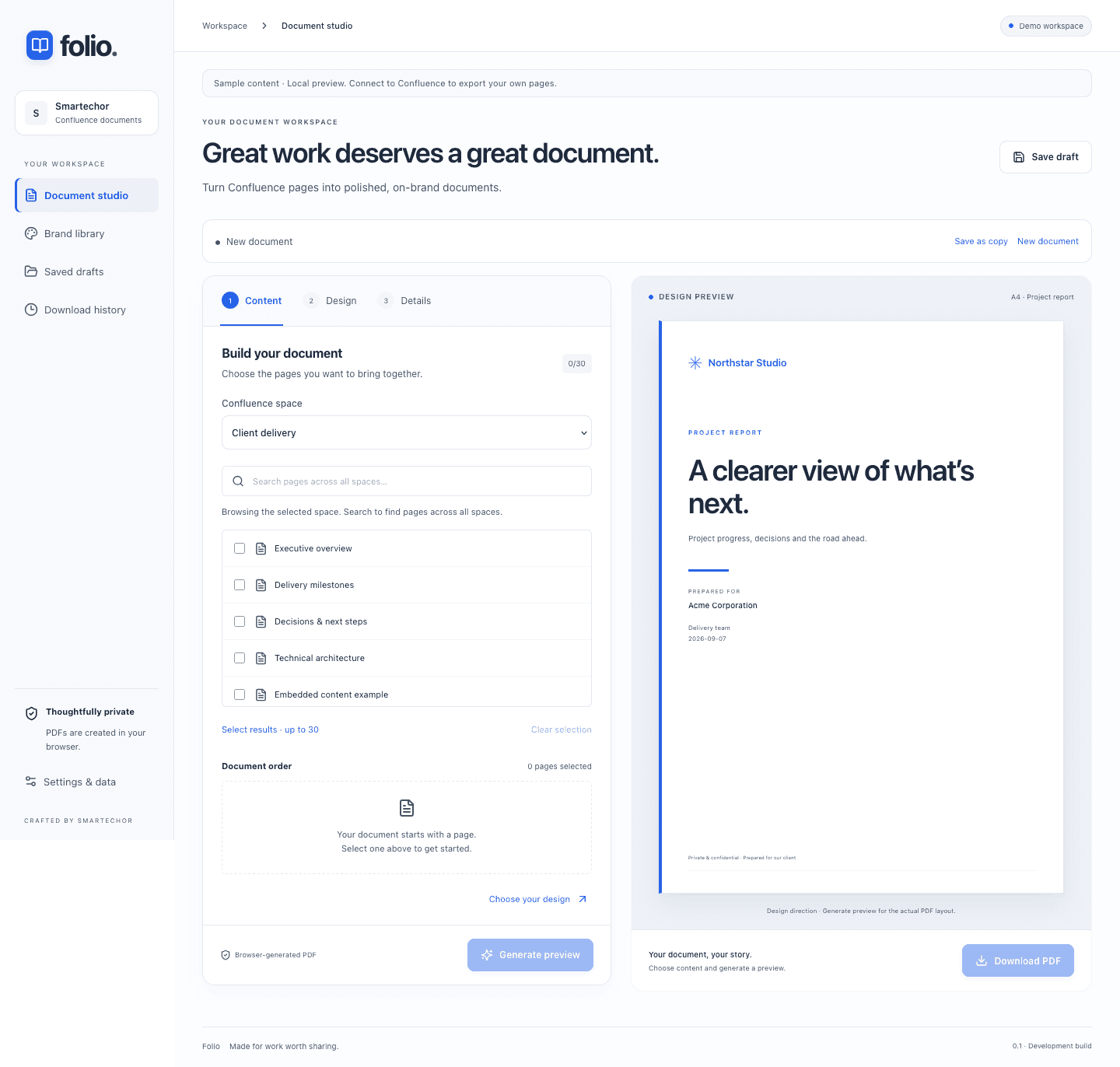
Browse spaces or search page titles, select up to 30 published pages and arrange their order. Combine material from different spaces into one document, using content you have permission to read.
03
Make it recognizably yours
Choose a report, proposal or handover preset. Add your logo, accent color, cover details and footer. Save brands for reuse across documents and clients.
04
Review the PDF before it leaves your desk
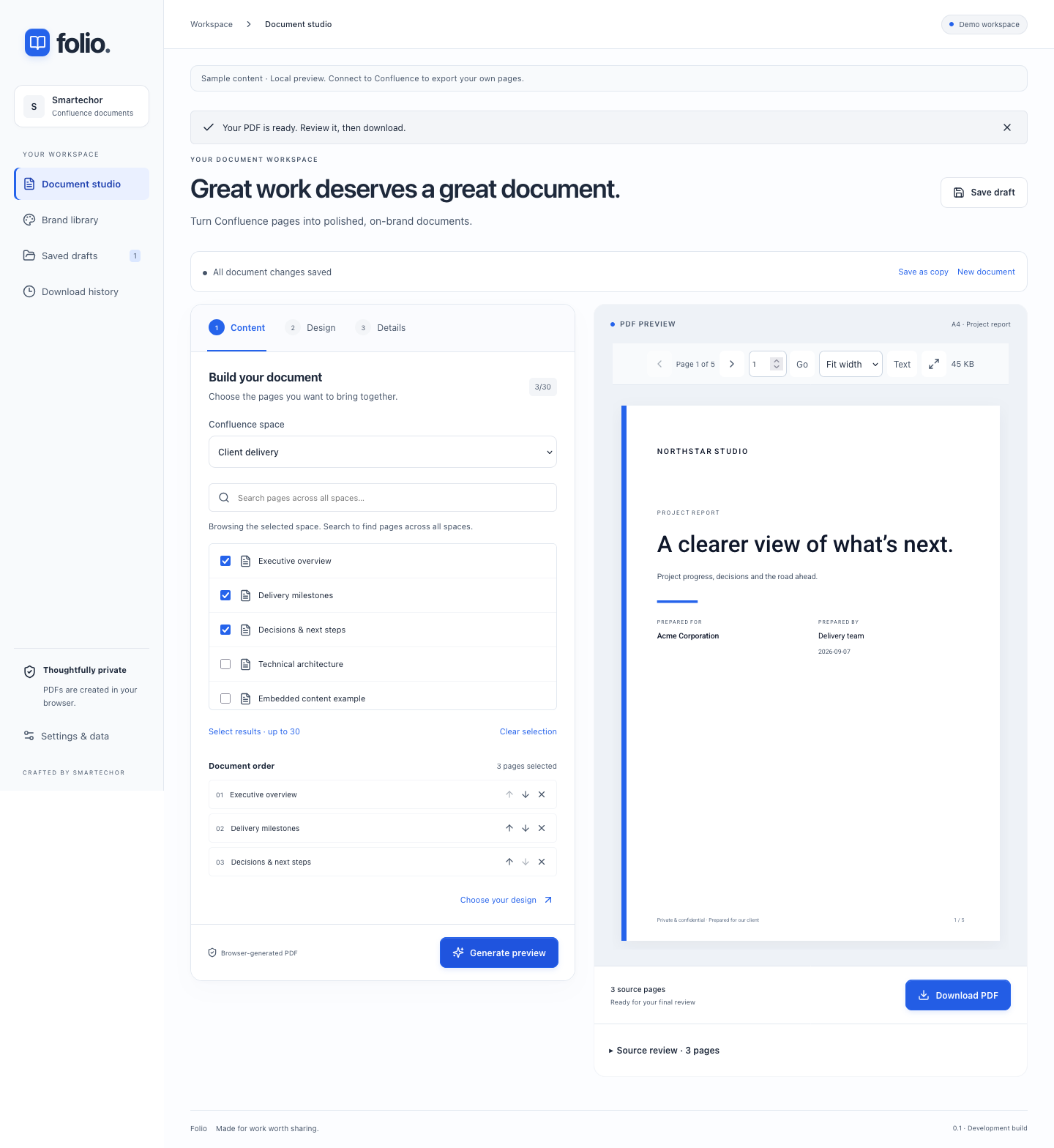
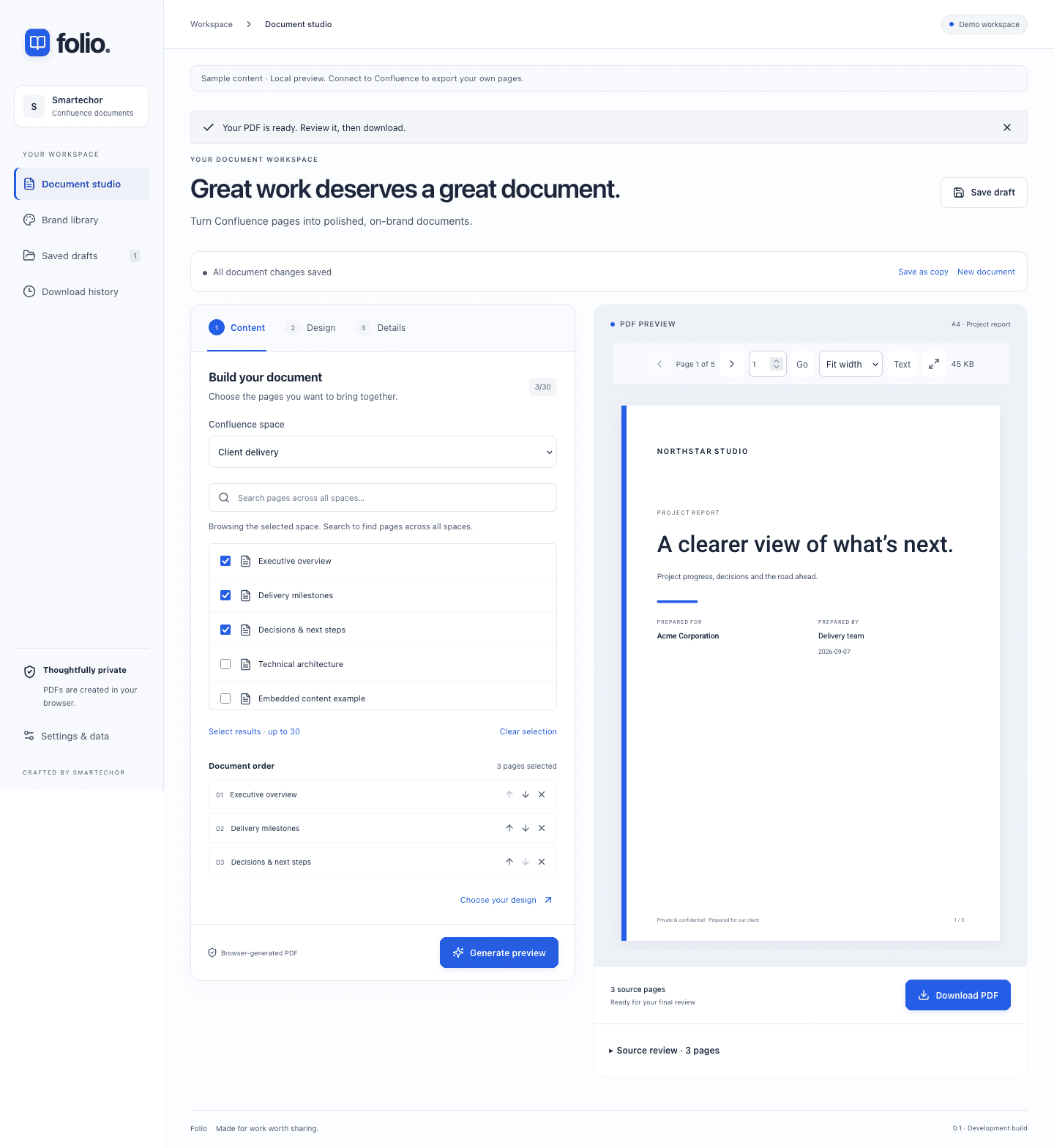
Generate the actual PDF, zoom in, navigate its pages and expand the viewer. Review source versions and detected conversion warnings before downloading.
05
Pick up where you left off
Save private drafts, create a separate copy and reuse document settings. Unsaved-change protection helps you avoid losing edits when moving between workflows.
06
The details that make a document feel finished
A4 or Letter. Optional clickable contents. Headers, footers and page numbers. Supported tables and attachment images. A consistent document structure without rebuilding every report by hand.
07
Three useful starting points
Project reports: Bring progress, decisions and next steps into a stakeholder-ready document.
Proposals: Assemble context, approach and scope into a branded PDF.
Handovers: Give the next team a structured record of the work and supporting knowledge.
08
How it works
- Open Folio in Confluence or use the export action on a page.
- Select and arrange the published pages you want to include.
- Choose your preset, brand and document details.
- Generate the PDF and review its layout and source notes.
- Download and share the finished document.
09
Designed around your existing access
Folio reads Confluence using the signed-in user's permissions. PDF generation runs in the browser. The app does not save source page bodies or generated PDFs in its app storage. Saved brands, draft metadata and download-request records are private to the account and can be deleted from Settings & data.
A closer look.

Sample PDF documents
Demo content — these are not real client deliverables.
Frequently asked questions
No. It reads published content for document generation.
Yes, up to 30 readable published pages in one document.
No. Common text elements, supported tables and PNG/JPEG attachment images are supported. Dynamic macros, external images and complex layouts may require review. Detected limitations are shown before downloading a partial export; source review still matters.
Yes. Save reusable brands and apply them to future documents.
The current output is PDF. DOCX, PDF/A, digital signatures and certified accessible PDF are not current features.
Launch pricing has not yet been announced. Contact us for availability and pricing updates.
Public Marketplace availability is pending. Contact us to discuss your needs; an inquiry does not guarantee early access.